VoxLift
Log your workouts by voice. Just lift — we'll handle the log.

How VoxLift works
Lift, log, rest, repeat.
VoxLift is built around the natural rhythm of a gym session: lift, log, rest, repeat. Instead of tapping through forms between sets, you speak a short note after each set and the app figures out the rest.
- 01
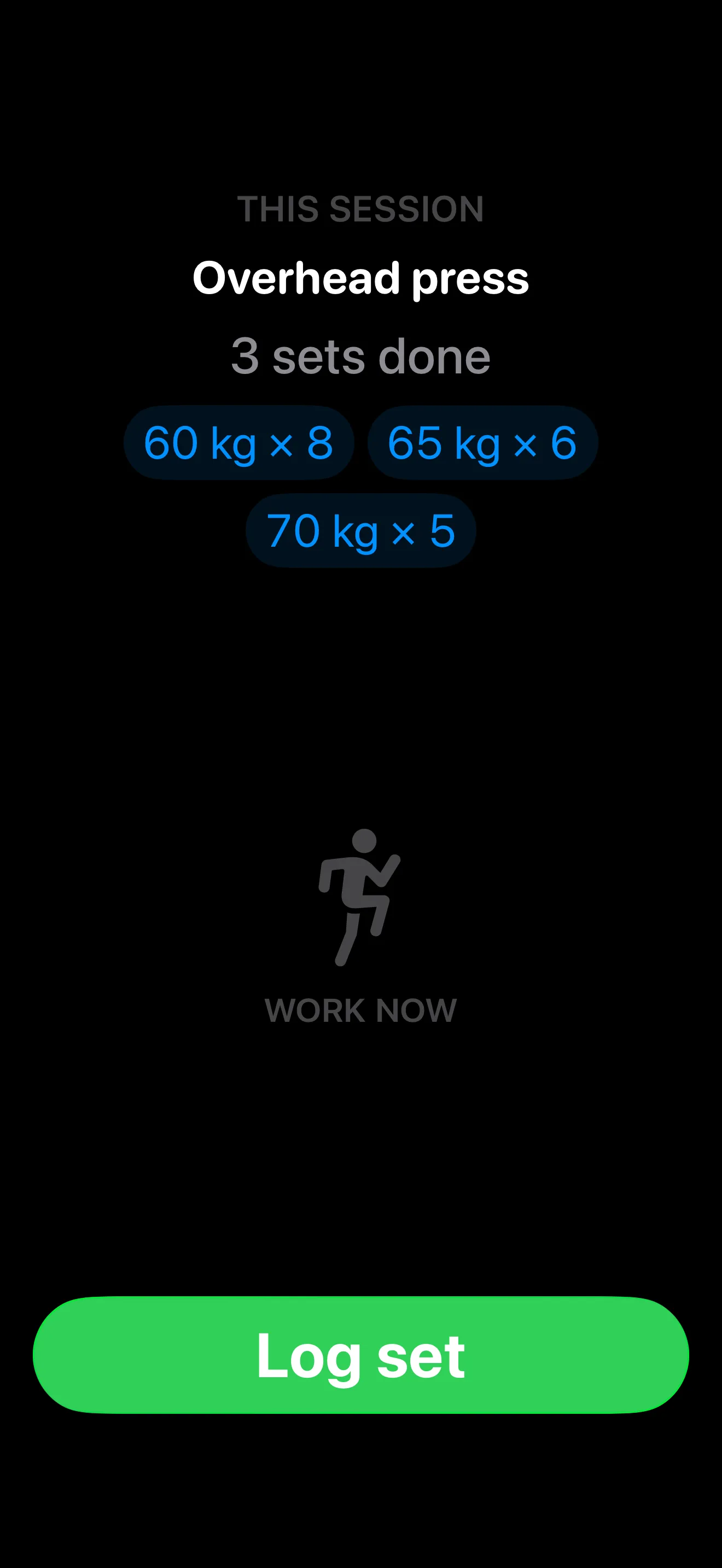
Work
You’re at the bar. The app shows your previous set for reference and a large “Log set” button.
- 02
Log
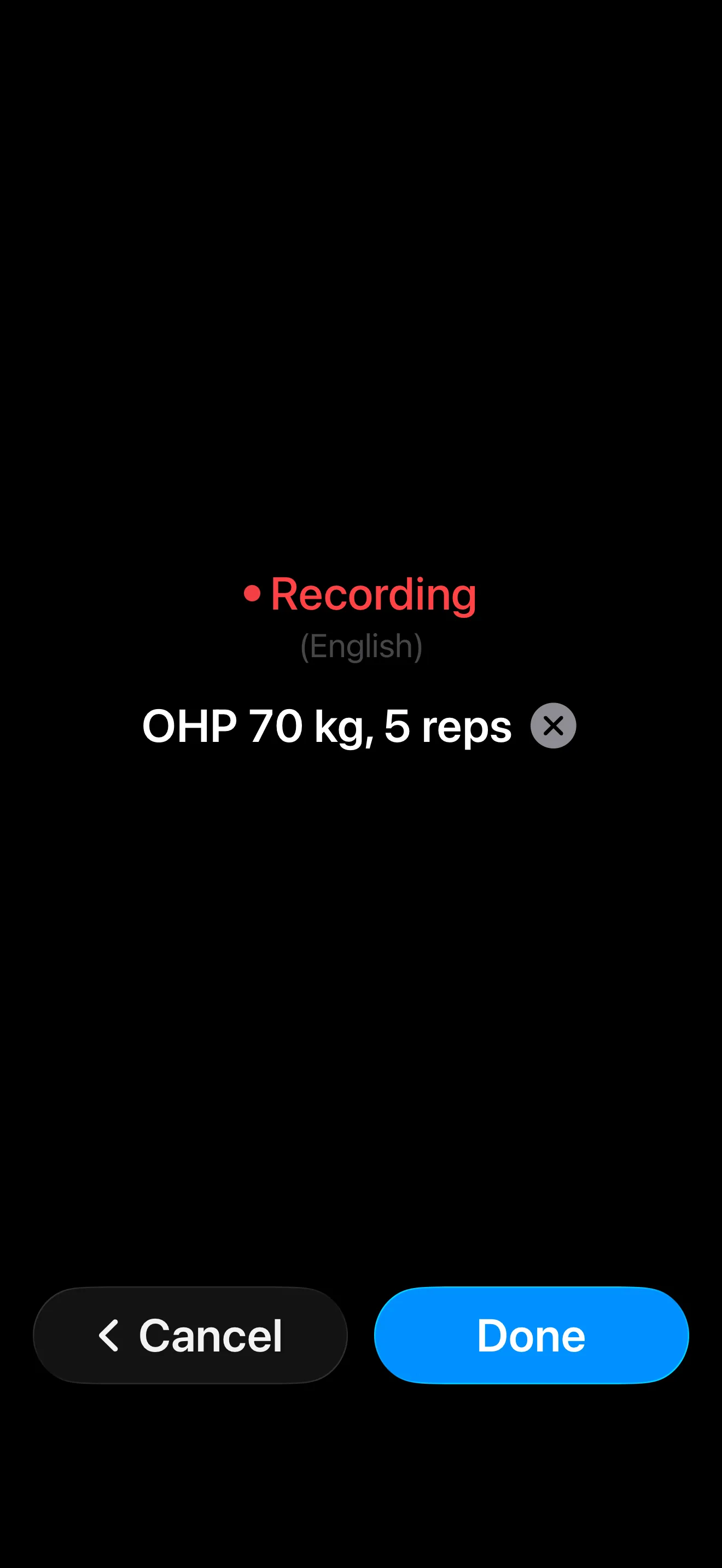
You tap “Log set” (the rest timer starts immediately) and speak what you just did. Something like “bench press, 3 sets of 8 at 80 kg” or “same weight, one less rep.” Tap Done when you’re finished speaking.
- 03
Confirm
Your transcript appears on screen for a quick review. It saves automatically after 5 seconds, or tap Confirm to save it straight away. You can edit the text here if anything was misheard.
- 04
Rest
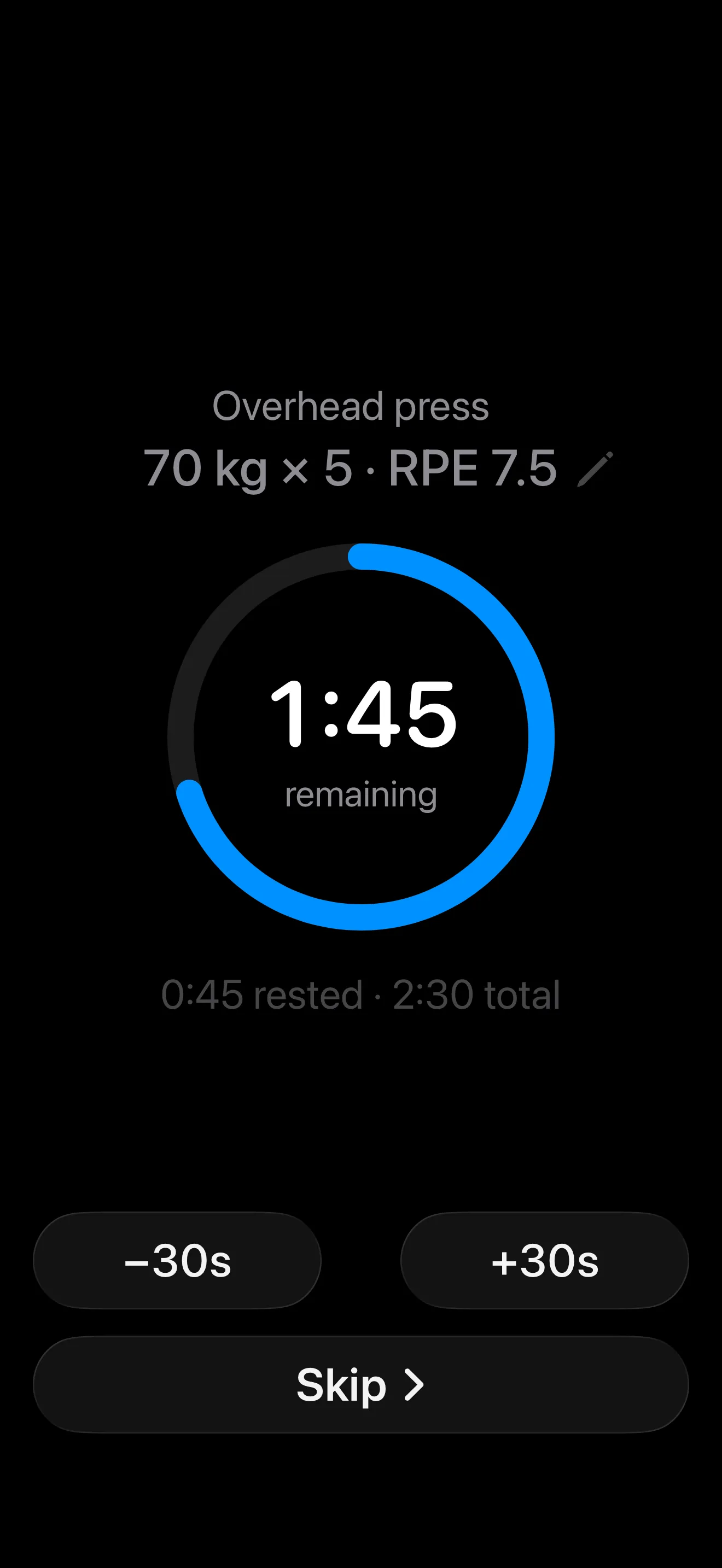
A countdown timer runs while you recover. The app parses your transcript in the background — you don’t need to do anything.
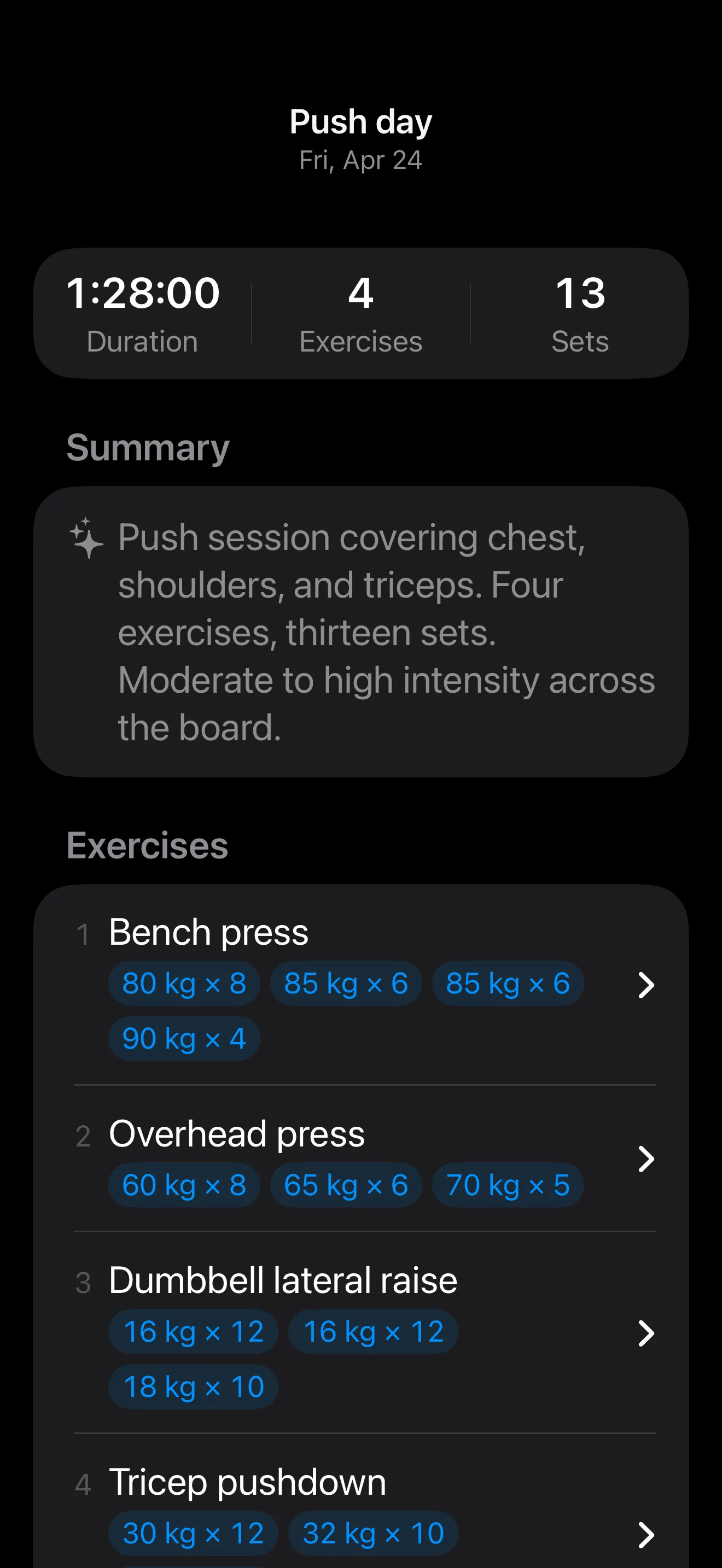
That’s the whole loop. Repeat for each set. When you’re done, tap End workout to close the session. An AI-generated summary is created automatically (when internet is available) and saved to the session — you can regenerate or clear it at any time.
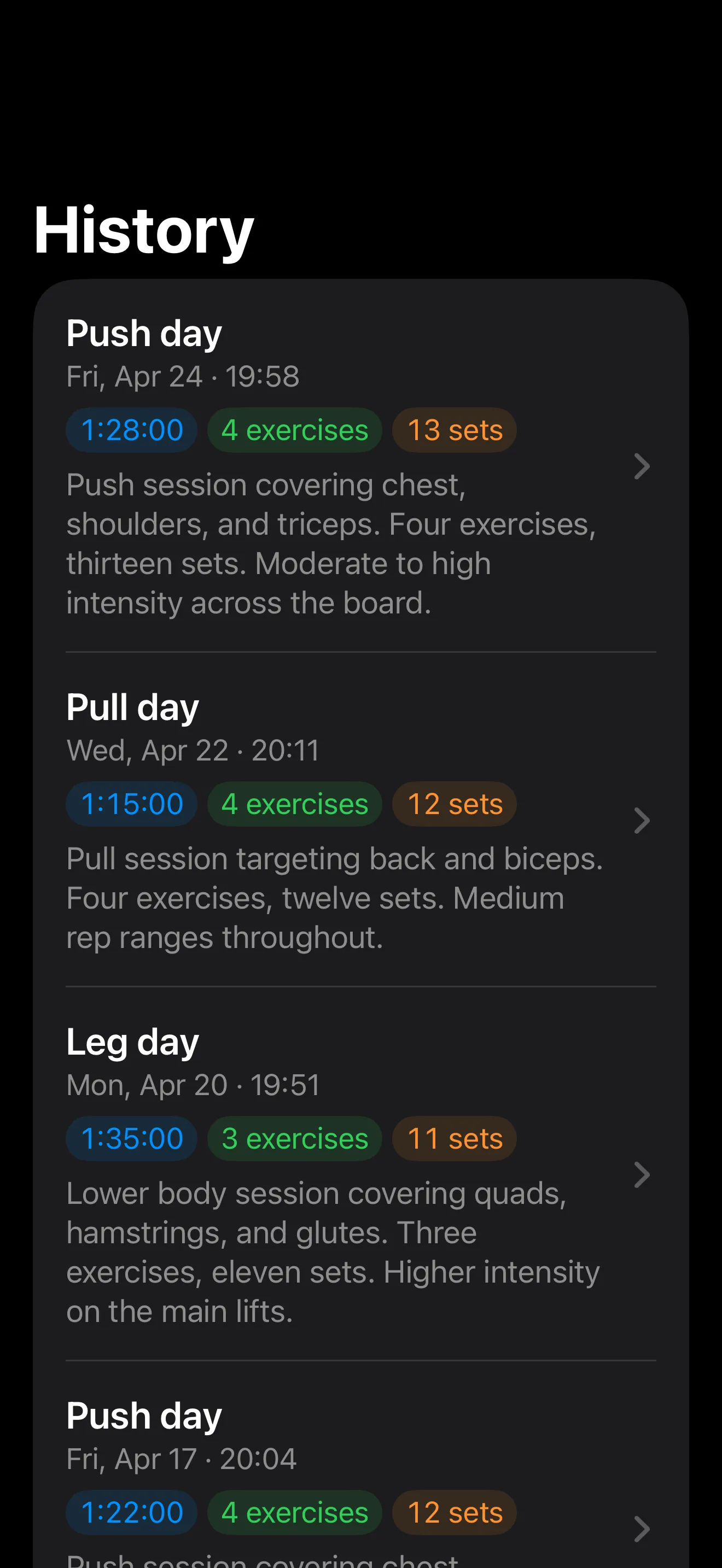
Your workout history lives in the History tab, where you can review sessions, edit any set, and track progress over time.
What VoxLift is — and isn’t
VoxLift is a logging tool, not a coaching app. There are no workout plans to set up, no exercise library to browse, no templates to fill in before you start. You don’t need to configure anything — just start a workout and lift what you were going to lift anyway. VoxLift’s job is to get out of your way and capture what you did, accurately and with as little friction as possible. What you get in return is a clean history of every session: sets, reps, weights — all built up automatically from your voice notes, one workout at a time.
No commands to learn
Say it however you'd say it.
- “Deadlift, 3 sets of 5 at 140 kg”
- “Bench press 80 kilos, 8 reps, RPE 7”
- “Same weight, just 6 reps”
- “Plus 5 kg, same reps”
- “Two 20s and a 5 on each side”
- “OHP 3×10 at 60, then dumbbell curls 4×12 at 16 kg”
Getting started
How do I log my first workout?
Tap Start workout on the main screen. After finishing a set, tap Log set — the rest timer starts immediately. Speak what you just did (e.g. “bench press, 4 sets of 6 at 90 kg”), then tap Done. Your transcript appears for a quick review and auto-confirms after 5 seconds. The app parses it in the background while you rest — structured sets appear in your session log automatically.
What permissions does VoxLift need?
VoxLift requests three iOS permissions:
- Microphone and Speech Recognition — requested the first time you tap “Log set.” Both are required for voice logging. If you declined them, go to iOS Settings → VoxLift and re-enable both toggles. Without these, the Log set button will be disabled.
- Apple Health — requested the first time you complete a workout, if the “Log workouts to Health” toggle is on in Settings. This permission is optional; you can disable Health logging in Settings at any time.
Can I use VoxLift without an internet connection?
Partially. Voice transcription happens on-device and works offline. The AI parsing step — which turns your transcript into structured sets and exercises — requires a brief internet connection. If you’re offline when you log a set, the transcript is saved and parsed automatically once you reconnect.
Voice logging
What can I say? Are there rules for how I phrase things?
No rigid commands — speak naturally. VoxLift understands a wide range of phrasing. Examples:
- “Deadlift, 3 sets of 5 at 140 kg”
- “Bench press 80 kilos, 8 reps, RPE 7”
- “Same weight, just 6 reps” — the AI remembers the previous set
- “Plus 5 kg, same reps”
- “Two 20s and a 5 on each side” — plate math is calculated automatically
- “OHP 3×10 at 60, then dumbbell curls 4×12 at 16 kg” — log multiple exercises in one recording
Which languages are supported for voice input?
VoxLift uses Apple’s built-in speech recognition, so any language supported by your device for dictation will work for voice logging. English and Russian are the languages we’ve specifically tested and optimised for. The app defaults to your device’s current language, or you can set a preference in Settings → Speech recognition.
Note that Baltic languages (Latvian, Lithuanian, Estonian) are not currently supported by Apple’s speech recognition — this is a known limitation we’re actively working to address in a future update.
The transcript looks wrong. What can I do?
During the Confirm step, tap the transcript text to edit it before it’s saved. If you catch a mistake after confirming, tap the transcript card in your session log to open it for editing — saving triggers a re-parse automatically.
If the AI understood the words but misread the structure, tap Wrong? on the parsed result to report it. This sends a diagnostic snapshot (transcript + parsed result) to help us improve accuracy.
Can I re-record if I made a mistake while speaking?
Yes. While recording, tap the ✕ icon next to the live transcript to clear it and start again — you stay on the recording screen and the rest timer keeps running. On the Confirm screen, tap Redo to jump back to recording instead.
What if I can’t use voice input?
If speech recognition is unavailable — or you’re somewhere you’d rather not speak aloud — tap “Type instead” on the recording screen to enter your set as text. The typed input goes through the same AI parser and produces the same structured result as a voice log.
Rest timer & Live Activity
How does the rest timer work?
The rest timer starts automatically as soon as you tap “Log set.” You can adjust the default rest duration in Settings. During the rest screen, use the +30s / −30s buttons to nudge the current countdown up or down.
Will the timer alert me when my phone is locked?
Yes. When the rest timer expires, a notification fires on your Lock Screen even if the app is in the background or the phone is locked — with sound and haptic feedback.
What is the Live Activity / Dynamic Island?
During an active workout, VoxLift shows a Live Activity on your Lock Screen and in the Dynamic Island (on supported devices):
- Working — shows your current exercise name and set count.
- Resting — shows a live countdown to the end of your rest period.
- Paused — shows elapsed workout time in a frozen state.
The Live Activity ends automatically when you end the workout.
Parsed results & workout history
What does “Parsing…” mean and how long does it take?
After you confirm a transcript, VoxLift sends it to a cloud AI that extracts exercises, sets, reps, weight, RPE, and notes as structured data. This typically takes 1–2 seconds. You don’t need to wait — results appear in your session log automatically when ready.
A set shows a “parser note” — what does that mean?
Parser notes flag cases where the AI was uncertain — an ambiguous weight, an unusual rep count, or something it couldn’t fully resolve. The data may still be correct; the note is an invitation to double-check that particular set. You can fix it in two ways: edit the individual set values directly from the session detail screen, or tap the transcript text to rephrase what you originally said — the app will re-parse it automatically.
How do I edit a set after it’s been parsed?
Open the workout from your History tab, tap the exercise, then tap any set to edit it. You can adjust reps, weight, unit (kg/lb), RPE, and add a note. You can also add or delete sets from the same screen.
What is the AI-generated summary?
When you end a workout, VoxLift automatically generates a short summary of what you did — exercises covered, sets, any notable moments. It’s saved to the session and visible in your History. If you’re offline when you end the workout, no summary is generated for that session. You can regenerate or clear the summary at any time from the session detail screen. The summary is stored locally on your device and synced to iCloud if you’re signed in.
Can I rename a workout session?
Yes. Open the session from History, tap the session title at the top, and edit it. If you don’t rename it, VoxLift generates a title automatically based on the exercises you logged.
Can I quickly reference a past workout while I’m training?
Yes. During an active workout, tap the History button in the top toolbar to browse your past sessions. Open any session and tap the Pin icon to pin it. From that point on, tapping the History button skips the list and opens the pinned session directly — at your last scroll position, so you don’t have to scroll through a long session every time. Useful when you’re loosely repeating a past workout and need a quick peek at what exercises and weights you used. Tap the Pin icon again to unpin and return to the full history list.
Subscription & billing
Do I need to subscribe to try VoxLift?
No. VoxLift gives you 3 free workouts before asking you to subscribe — no account needed, no credit card, no trial to remember to cancel. After the 3 free workouts, you’ll be shown the subscription options. You can then start a 14-day free trial before any charge is made.
How does the free trial work?
After your 3 free workouts, VoxLift offers a 14-day free trial. You’ll confirm the trial start through the App Store in the usual way — no charge is made until the trial period ends. You get full access to all features during the trial. At the end of the 14 days, your chosen subscription plan begins automatically unless you cancel beforehand.
What are the subscription options?
VoxLift is available as a monthly or annual subscription. Current prices are shown in the App Store in your local currency at the time of purchase.
How do I cancel my subscription?
Subscriptions are managed by Apple, not by VoxLift directly. To cancel, go to iOS Settings → [your name] → Subscriptions → VoxLift and tap Cancel. You’ll retain access until the end of the current billing period.
Can I get a refund?
Refund requests are handled by Apple. Visit reportaproblem.apple.com and sign in with your Apple ID to request one.
I subscribed on one device. Can I use VoxLift on another?
Yes — your subscription is tied to your Apple ID. As long as you’re signed in with the same Apple ID on both devices, your subscription is active on both. Your workout history also syncs automatically across devices via iCloud, as long as you’re signed in to the same iCloud account.
Privacy & data
Where is my workout data stored?
Your workout data — sessions, exercises, sets, and transcripts — is stored on your device and backed up to your personal iCloud account (if you’re signed in to iCloud). Audio recordings are stored locally only and are never synced to iCloud or any server. Your iCloud data is private to you and cannot be accessed by us.
What happens to my voice recording?
Your audio recording stays on your device. It is never sent to our servers or any third party. When you log a set, VoxLift transcribes your voice on-device and sends only the text transcript to our cloud for AI parsing. Once parsing is complete, the transcript is discarded — we do not store it.
Who processes my transcript text, and where?
Transcript text is sent to our backend hosted on AWS infrastructure in the EU. It is processed by an AI model running in the EU. Processing is stateless — we do not store transcripts on our servers.
Does VoxLift write to Apple Health?
Yes, optionally. If you enable “Log workouts to Health” in Settings, VoxLift writes completed workouts to Apple Health as strength training sessions. VoxLift does not read any data from Apple Health. You can disable this at any time in Settings.
What data is collected if the app crashes?
Crash reports are sent automatically to Sentry (EU region). These contain technical diagnostic information (device model, iOS version, stack trace) but no personal information — not your name, email, location, or workout content. If you use the “Report a problem” feature to submit a bug report, the relevant transcript and parsed result are included in that specific report only.
How do I delete my data?
Delete individual sessions from the History tab (swipe left → Delete). Deleting a session removes all associated exercises, sets, transcripts, and the audio recording. If iCloud sync is enabled, the deletion propagates to iCloud automatically. Uninstalling the app removes all local data from your device. To remove iCloud data, delete the app and then remove VoxLift from iOS Settings → [your name] → iCloud → Manage Account Storage.
Where can I read the full privacy policy?
Read the VoxLift Privacy Policy.
Contact & support
I found a bug. How do I report it?
Open Settings → Report a problem inside the app. Describe what went wrong — this sends a report directly to our team with useful diagnostic context attached automatically.
I have a question not answered here
Open Settings → Contact support or email us at support@metamorphology.com.
No matches. Try different words, or ask us directly.
Still stuck?
Ask us directly, or email support@metamorphology.com.